Find & edit your content
My Directory listings:
Click on the MyAccount tab at the very top of your screen. You do need to log in.

You'll see all your directory listings under the Listings tab.

The quickest way to edit your entry is to click the  which opens a list of options - edit content, edit media and add media. This cog icon also appears on your listing and detail pages when you are logged in.
My What's on & Special Offers listings:
You find these shown at the My Listings link under the What's on tab in the main navigation menu. You do need to be logged in to see them.
The most common reason is that your address details are completed incorrectly. If you insist, for example, that Simon's Town is a separate town rather than a suburb of Cape Town, and use that as your location, people won't find you when they use "Cape Town" as the search phrase.
If the search you tried included a price range, or something like being dog-friendly, but you never completed those options in the tick boxes for services, facilities, etc, you won't be found in any search!
You need to be logged in to edit or add to your content. Making sure that it is correct, comprehensive and sells your business is the key to being successful.
If you are logged in on your Directory page, you'll see the following:

NB!!! The cog symbol opens options for editing your listing, adding and editing media (photos, videos and attachments).
Edit Listing is where you change business descriptions, location, other info and, if you have a Full Entry, your contact details.
The Edit media option shows all your media (photos, etc) and allows you to delete images, change the order, add captions and select your main image.

The red star means a photo is your main image. The green tick means the image is published (red tick = not published). The pen symbol allows you to edit your media – add a caption. And the waste bin allows you to delete the media item.
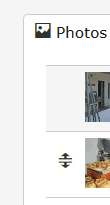
A double arrow appears when your cursor hovers over one of the images. Dragging it up or down changes the order of the images.
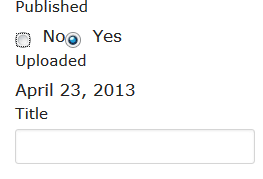 When you click on the pen icon to edit images, a caption can be added in the Title field. Tell your readers what they are seeing!
Remember that you can show up to 13 photos (depending on the Plan chosen).
For a neat page, where the image gallery forms a block, please add 4, 7, 10 or 13 photos. You can also add extra photos quickly by clicking on the "Add media" button alongside the cog symbol.
If you're in an urban area, Google will normally be able to get your exact location from the street address you added, provided you included your street number and postal code. But sometimes the results are way out.
If the marker position is reasonably close to accurate, click the Map it button to open your map, and then drag the marker to the correct position. Enlarging the map and changing to Satellite view will help you position it accurately. And then close the window.
If the marker is in the wrong place completely, click the Clear coordinates button to clear the GPS co-ordinates, and
either try to improve your street address, maybe adding more details in the street address field such as town name (if the marker got your town wrong), and then click Map it again. You can also just drag the marker to the correct position, after changing the map's scale.
If you have GPS co-ordinates, you can add those to the latitude and longitude fields. Just make sure that they are in digital format (see next question for help) and that you include the minus sign for latitude (for the southern hemisphere).
Google Street View
It is exactly what it says: a street view outside your location rather than a picture of your location. To look at the properties on either side of a position, one needs to turn the circular orientation tool clockwise or anti-clockwise.
When you move the marker, the position of the street view changes too.
If you're in an area where Google maps are not accurate, you may prefer to set your map location by adding GPS co-ordinates if you have them. You may not use co-ordinates in degrees, minutes and seconds (00° 00" 000'). You may only use decimal co-ordinates. Please use the convertor below.
Please also remember latitudes below the equator must have a minus sign in front. Please always check that your location is correct by viewing your page once you have made changes.
Click here for a convertor to change GPS co-ordinates in degrees to decimal.
This has been written with accommodation establishments in mind, but other categories can also get some basic pointers here.
Your Introduction: Does this grab the reader's attention and make them want to click through to read more? This is usually the first thing they see in the search and category lists when they make their selection from a number of listings.
Your Description: Does this really sell your product and give readers a reason to book or buy? So many accommodation establishments claim to be "a home away from home", but is this what travellers really want? Aren't they "getting away?"
Your photos: Does your main image - the one with the red star on your admin page and which appears in your search and category listings, and largest on your page - really do you justice and does it catch the reader's eye? Do your images have captions/titles telling the reader more? Have a look at Nightsbridge's tips on photography - click here.
Rates range: Have you ticked the appropriate box/es to show your rates? These are used in advanced searches when price is selected. If you haven't completed this, your business won't appear in searches.
Services & Facilities Checklists: Have you ticked the appropriate box/es? These are used in advanced searches when items like "Dog friendly" or "Beach nearby" are selected. If you haven't completed this, your business won't appear in these searches. (If you have conditions for "Dog friendly", you can add them in your Description.)
Map location: Is your map location correct? The next two topics in the Help Centre deal with fine-tuning your map location.
Videos & Attachments: If you have a Full Listing, have you added these? They raise the interest shown in your listing and provide readers with much more information.
A Nightsbridge client? Is your Nightsbridge BBID number correct and does clicking on the Booking button take you to your booking engine?