-
I can't find my entry
There are a few ways:
- If you log in, a number of links appear in the white bar at the very top of your screen. One of these is MyAccount. If you click on that, you'll see all the listings that you have added. Clicking on those will take you to your page. Clicking on the cog icon to the left of your listing's name will open the edit screen.
- You can search for your entry in the right hand search box on every page, using the business name. If you can't remember the exact format of the business name you entered, type just a part of the word that is more or less unique. (You don't have to select the location unless there are too many search results.)
- You can use the search box at the very top of the screen. This is powered by Google and, if your entry was only added recently, they take up to a day or two to index new entries on the site.
Thank you for the feedback
-
How do I edit my content?
One of the biggest features of the Directory upgrade is the new media system:
- photos up to 5Mb can be uploaded;
- the order of photos can be changed;
- captions can be added to each photo;
All Full Entries can also now add videos and attachments (PDF brochures, for example).
Only Basic Nightsbridge entries may not add videos and attachments since these invariably provide contact details and potential guests may only use the Nightsbridge booking system for these entries – Basic Nightsbridge entries show no contact details and potential guests cannot make enquiries.The most important change from a user's point of view is that photos are no longer managed on your listing admin page - there is a separate media section. If you are logged in on your Directory page, you'll see the following:

 The cog symbol opens options for editing your listing, adding and editing media (photos, videos and attachments).
Edit Listing is where you change business descriptions, location, other info and, if you have a Full Entry, your contact details.
The Edit media option shows all your media (photos, etc) and allows you to delete images, change the order, add captions and select your main image.

The red star means a photo is your main image. The green tick means the image is published (red tick = not published). The pen symbol allows you to edit your media – add a caption. And the waste bin allows you to delete the media item.
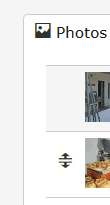
The double arrow appears when your cursor hovers over one of the images. Dragging it up or down changes the order of the media items.
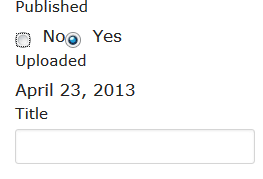
When you click on the pen icon to edit images, a caption can be added in the Title field.
Remember that you can show up to 13 photos. For a neat page, where the image gallery forms a block, please add 4, 7, 10 or 13 photos. You can also add extra photos quickly by clicking on the "Add media" button alongside the cog symbol.
Thank you for the feedback
-
How do I change my map location?
If you're in an urban area, Google will normally be able to get your exact location from the street address you added, provided you included your street number and postal code. But sometimes the results are way out.
If the marker position is reasonably close to accurate, click the Map it button to open your map, and then drag the marker to the correct position. Enlarging the map and changing to Satellite view will help you position it accurately. And then close the window.
If the marker is in the wrong place completely, click the Clear coordinates button to clear the GPS co-ordinates, and
either try to improve your street address, maybe adding more details in the street address field such as town name (if the marker got your town wrong), and then click Map it again. You can also just drag the marker to the correct position, after changing the map's scale.If you have GPS co-ordinates, you can add those to the latitude and longitude fields. Just make sure that they are in digital format (see next question for help) and that you include the minus sign for latitude (for the southern hemisphere).
Google Street View
It is exactly what it says: a street view outside your location rather than a picture of your location. To look at the properties on either side of a position, one needs to turn the circular orientation tool clockwise or anti-clockwise.When you move the marker, the position of the street view changes too.
Thank you for the feedback
-
I want to use GPS co-ordinates
If you're in an area where Google maps are not accurate, you may prefer to set your map location by adding GPS co-ordinates if you have them. You may not use co-ordinates in degrees, minutes and seconds (00° 00" 000'). You may only use decimal co-ordinates. Please use the convertor below.
Please also remember latitudes below the equator must have a minus sign in front. Please always check that your location is correct by viewing your page once you have made changes.
Convertor for GPS Degrees, Minutes & Seconds to Decimal Degrees
Enter Degrees, Minutes & Seconds
Degrees Minutes Seconds to Decimal Degrees
Thank you for the feedback
Presenting SA's gateway regions effectively.
Special offers



Newsletters
Latest directory entries


